To start using erwin Mart Portal and erwin ER360, you first need to initialize the database. You can initialize the database using a database authenticated user.
Before you proceed, verify that you have installed a DBMS, created the database, and configured Mart Portal. If the application is already initialized, the Login page appears.
erwin Mart Portal
When you open erwin Mart Portal for the first time, the Initialize Mart Portal page appears.
If you are using Mart Portal as a Windows service, ensure that the service is started. If not, from the Windows Start menu, click erwin > Start as Service to start the Mart Portal. A Windows command prompt window appears and indicates when the server starts.
To initialize mart, follow these steps:
- On the Windows Start Menu, click erwin > erwin Mart Portal.
erwin Mart Portal opens in your default browser.
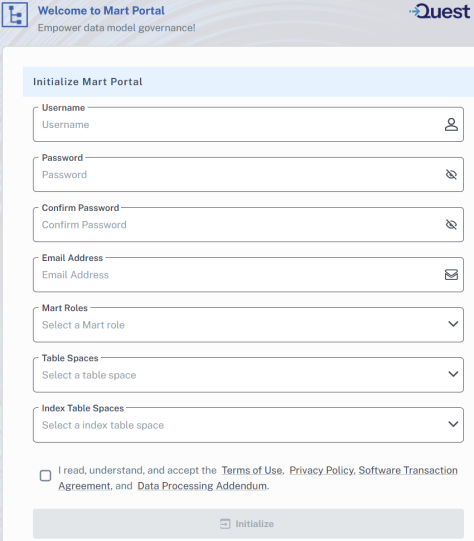
- Complete the following fields:
- Contains at least 1 lowercase character
- Contains at least 1 uppercase character
- Contains at least 1 number
- Is minimum 6 characters in length
- Is maximum 130 characters in length
- Click Initialize.
The username is added as an administrator of Mart, the Mart is initialized, and the Login page appears. Initializing is a one-time task. After initialization, the user who initialized must log in first. Later, any other user who wants to use erwin Mart Portal can log in.
|
Field |
Description |
Additional Information |
|---|---|---|
| Username | Specifies the username with which you want to access the Mart. If you are using a Windows-authenticated user, enter the name in the <domain name>/<username> format. | |
| Password | Specifies the password for the username |
A password must fulfil the following criteria:
|
| Confirm Password | Confirms the password that you entered in the previous field. | |
| Email Address | Specifies the email address for the user account that you are creating. | |
| Mart Roles | Specifies the database role that grants privileges to manage models, users, and repository access in Mart. For example, MMINSTALL. | |
| Table Spaces | Specifies the default storage location for Mart data objects such as models and metadata. For example, MMDATA. | |
| Index Table Spaces | Specifies the storage location for database indexes to optimize query performance and retrieval. For example, MMINDEX. |
The username that is entered here is an application-level user and not a database user. Remember the password that you have entered here. Without the password you cannot log in to erwin Mart Portal for the first time.
In the previous releases, only a server user was allowed to initialize a Mart. From release r9.6, a Windows-authenticated user can also initialize a Mart. Further, a Windows-authenticated user can log in to a Mart as a Windows user.
erwin ER360
To use erwin ER360, you first need to initialize the application. The following sections walk you through the process. Choose the section that matches your erwin ER360 version.
Initialize erwin ER360 15.1 and Earlier
When you open erwin ER360 for the first time, the Initialize ER360 page appears.
To initialize erwin ER360, follow these steps:
- On the Windows Start Menu, click erwin > erwin ER360.
erwin ER360 opens in your default browser.
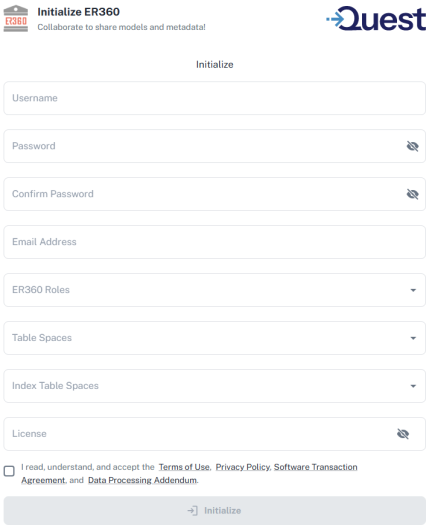
- Complete the following fields:
- Contains at least 1 lowercase character
- Contains at least 1 uppercase character
- Contains at least 1 number
- Is minimum 6 characters in length
- Is maximum 130 characters in length
-
Select the terms of use, privacy policy, and software transaction agreement check box.
- Click Initialize.
The username is added as an administrator of ER360, ER360 is initialized, and the Login page appears. Initializing is a one-time task. After initialization, the user who initialized must log in first. Later, any other user who wants to use erwin ER360 can log in.
|
Field |
Description |
Additional Information |
|---|---|---|
| Username | Specifies the username with which you want to access the application. If you are using a Windows-authenticated user, enter the name in the <domain name>/<username> format. | |
| Password | Specifies the password for the username |
A password must fulfil the following criteria:
|
| Confirm Password | Confirms the password that you entered in the previous field. | |
| Email Address | Specifies the email address for the user account that you are creating. | |
| ER360 Roles | Specifies the database role that grants privileges to manage models, users, and repository access in Mart. For example, MMINSTALL. | Applicable to erwin ER360on Oracle. |
| Table Spaces | Specifies the default storage location for Mart data objects such as models and metadata. For example, MMDATA. | Applicable to erwin ER360on Oracle. |
| Index Table Spaces | Specifies the storage location for database indexes to optimize query performance and retrieval. For example, MMINDEX. | Applicable to erwin ER360on Oracle. |
|
License |
Specifies your erwin ER360 license code. |
If you need help with the license code, contact your license administrator. You can initialize erwin ER360 with an offline license. For more information on offline licenses, contact license support. |
Initialize erwin ER360 15.2 and Later
Starting 15.2, erwin ER360 uses a Quest Per Instance license that you activate on Quest Licensing Portal. Activation links your erwin ER360 instance to a license held in the Quest Licensing Portal via a Quest access key. This key consists of a Client ID (access key identifier) and a Client Secret (access key secret). You must generate and use the access key with the erwin ER360license key. After the application validates the license online, you can initialize the instance and sign in. You can later re-validate or update the license via Settings.
To generate access keys on Quest Licensing Portal, follow these steps:
-
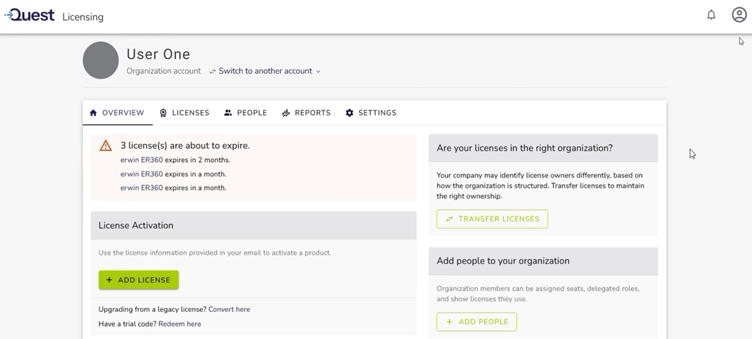
Log in to Quest Licensing Portal.
The Overview page opens.
-
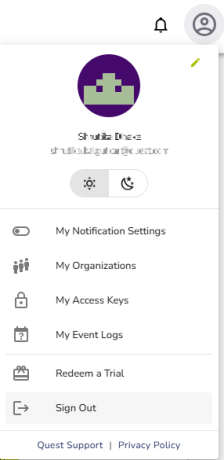
Click your user account icon.
-
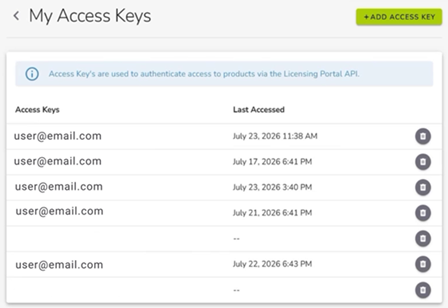
Click My Access Keys.
The My Access Keys page opens.
-
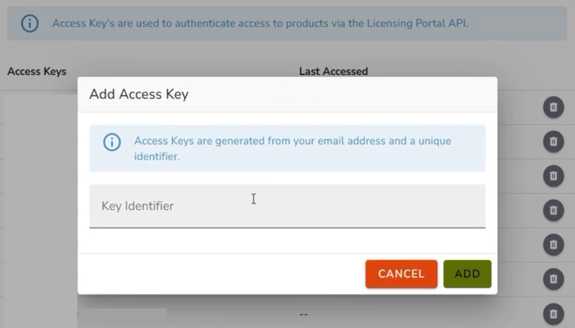
Click Add Access Key.
The Add Access Key dialog appears.
-
Enter an easy to remember, text-based Key Identifier and then click Add.
The Key Identifier you enter is used to generate Access Key Identifier and Access Key Secret.
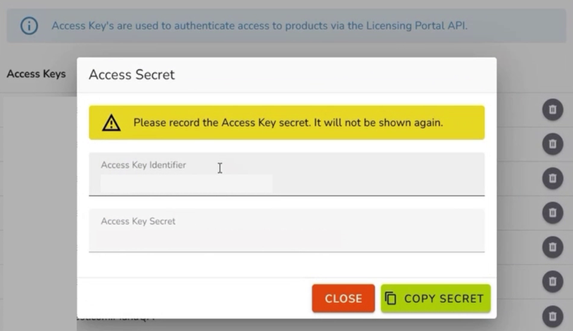
The access key secret is displayed only once. If you do not record it, you must generate a new access key.
-
Click Copy Secret and store the secret securely.
-
Click Close.
Next, to initialize erwin ER360, follow these steps:
- On the Windows Start Menu, click erwin > erwin ER360.
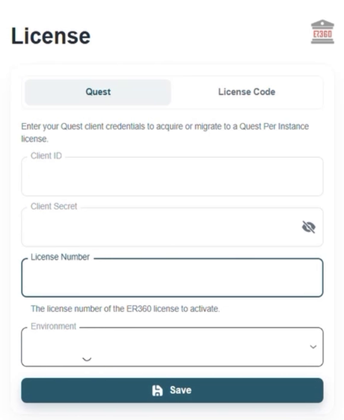
erwin ER360 License page opens in your default browser.
-
Enter the following information:
-
Client ID: Access Key Identifier
-
Client Secret: Access Key Secret
-
License Number: Your erwin ER360 license key
-
Environment: Your erwin ER360 environment
Use the License Code tab instead of the Quest tab only if you were given a standalone license code rather than Quest client credentials.
-
-
Click Save.
The Initialize ER360 page opens.
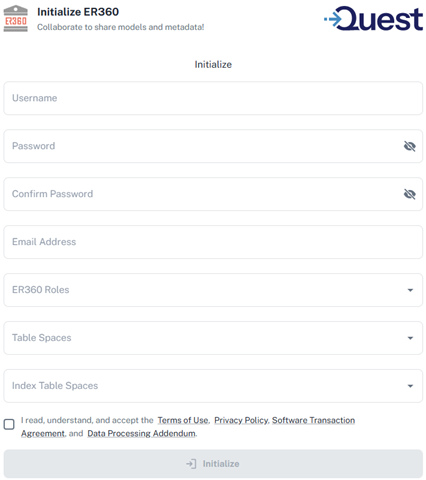
- Complete the following fields:
Field
Description
Additional Information
Username Specifies the username with which you want to access the application. If you are using a Windows-authenticated user, enter the name in the <domain name>/<username> format. Password Specifies the password for the username A password must fulfil the following criteria:- Contains at least 1 lowercase character
- Contains at least 1 uppercase character
- Contains at least 1 number
- Is minimum 6 characters in length
- Is maximum 130 characters in length
Confirm Password Confirms the password that you entered in the previous field. Email Address Specifies the email address for the user account that you are creating. ER360 Roles Specifies the database role that grants privileges to manage models, users, and repository access in Mart. For example, MMINSTALL. Applicable to erwin ER360on Oracle. Table Spaces Specifies the default storage location for Mart data objects such as models and metadata. For example, MMDATA. Applicable to erwin ER360on Oracle. Index Table Spaces Specifies the storage location for database indexes to optimize query performance and retrieval. For example, MMINDEX. Applicable to erwin ER360on Oracle. License
Specifies your erwin ER360 license code.
If you need help with the license code, contact your license administrator.
You can initialize erwin ER360 with an offline license. For more information on offline licenses, contact license support.
-
Select the terms of use, privacy policy, and software transaction agreement check box.
-
Click Initialize. The username is added as an administrator, erwin ER360is initialized, and the Login page appears. Initializing is a one-time task. After initialization, the user who initialized must log in first. Later, any other user who wants to use erwin ER360 can log in.
To confirm the license status, open Settings and locate the License section. A Valid badge indicates the license is active. The section shows the License Type (Quest), Concurrent Users, Support Expiry, Deployment, and the Instance Fingerprint.
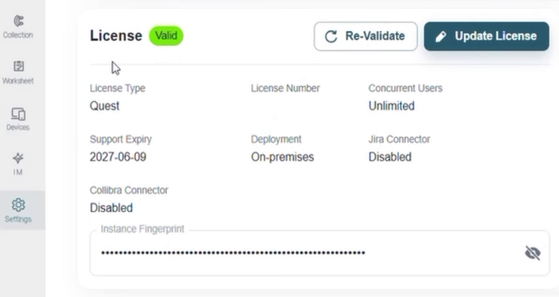
You can use the Re-Validate button to recheck the license online or use the Update License button to renew or migrate a license.